A Beginner’s Guide to Streaming Your Gameplay on Twitch
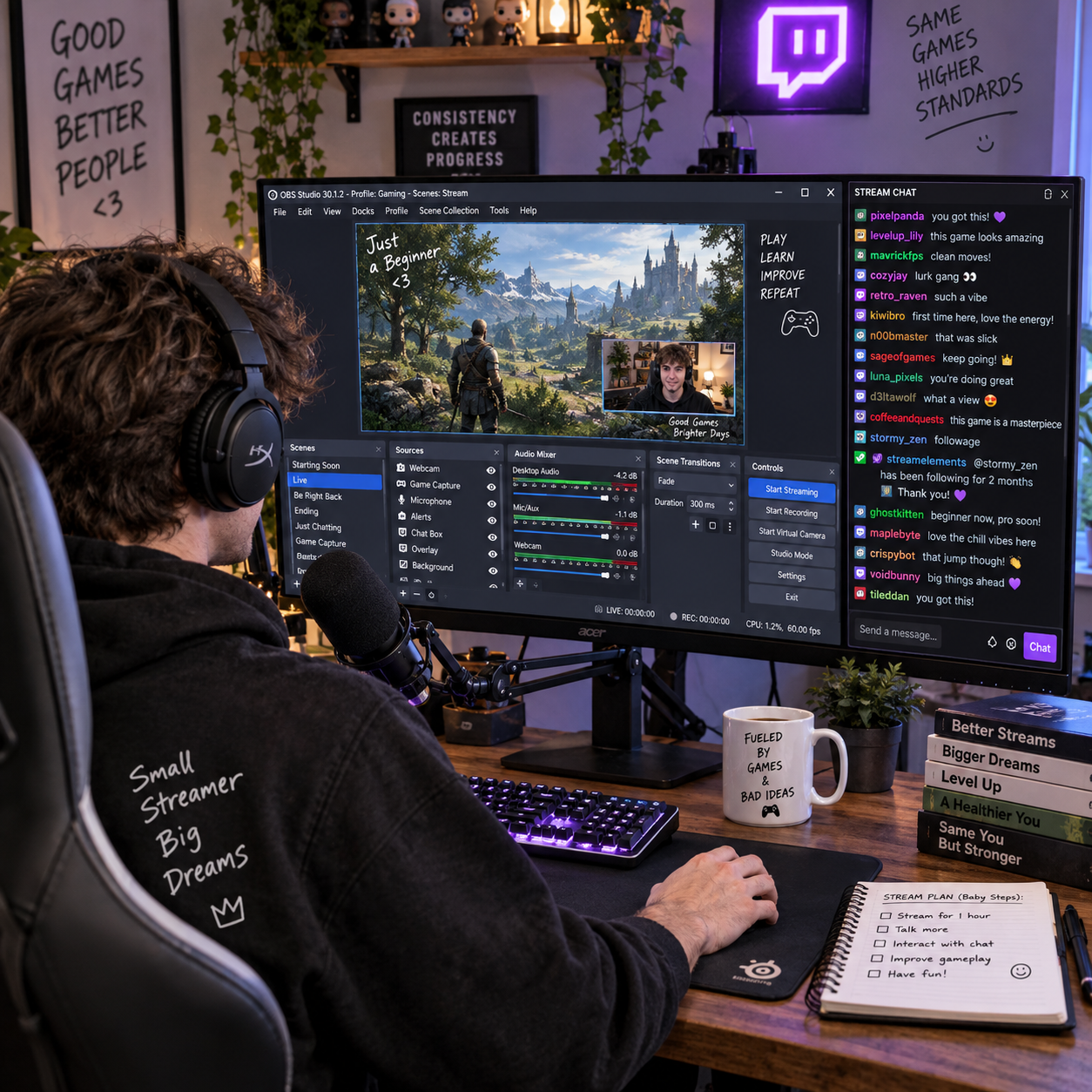
Streaming gameplay on Twitch can be as simple as sharing a console session or as customizable as building a full PC broadcast. You do not need expensive equipment or an existing audience to begin; a working game device, a stable internet connection, and a few minutes of testing are enough for a first attempt.
This guide walks through the setup in order: choose your equipment, prepare your Twitch account, connect streaming software, check your audio and video, then go live. Start with the simplest setup you can manage and add gear only when you know what would improve your stream.
What You Need to Start Streaming
To start streaming gameplay on Twitch, you need a gaming device, a reliable internet connection, and a microphone. A webcam and capture card are optional, depending on your setup and whether you want to show your face or stream from a console through a computer.
Your gaming device might be a gaming PC, PlayStation, Xbox, or another supported console. If you play and stream on one PC, that computer must run the game and the streaming software at the same time. A less powerful system may need lower graphics settings or a simpler stream resolution to avoid stuttering.
Prioritize a clear microphone over a webcam. Viewers can follow a game without seeing your face, but muffled or very quiet commentary can make a stream hard to enjoy. A basic USB microphone or a headset mic is a reasonable starting point; position it close enough to pick up your voice without blocking your view.
- Internet: Use a wired Ethernet connection if possible. Wi-Fi can work, but interference and weak signal may cause dropped frames.
- Webcam: Optional. If you use one, place it where it does not cover important game information.
- Capture card: Usually needed when you want to send console gameplay to a computer running OBS Studio. Some consoles also offer direct Twitch broadcasting.
Upload speed matters more than download speed for a live broadcast. Run a speed test at the time you expect to stream, since household use can affect available bandwidth. Leave room for other devices rather than setting a bitrate that consumes nearly all your upload capacity.
Set Up Your Twitch Account and Channel
To prepare a Twitch channel, create or sign in to your Twitch account, review its security settings, and add the basic stream information viewers need. Your channel page and broadcast details help people understand what game you are playing and what to expect.
Choose a username you are comfortable using publicly. Turn on two-factor authentication if available, use a unique password, and check Twitch’s current account and streaming requirements in your account settings. Avoid putting your full name, home address, school, or other private information in your profile or on stream.
Before your first broadcast, prepare a simple title and select the correct game or category. Add a language and any other relevant stream details shown in your dashboard. A clear title such as “First run through Hollow Knight | learning the controls” tells viewers more than a generic label.
Take a moment to inspect your channel as a viewer might see it. You can add a short bio, but you do not need custom graphics or a polished schedule to start. Keep personal notifications, private messages, and unrelated browser tabs out of view if you plan to share your desktop.
Choose and Configure Streaming Software
Streaming software captures your gameplay, mixes in audio, and sends the broadcast to Twitch. OBS Studio is a popular free option for beginners because it supports game capture, microphones, webcams, and customizable scenes.
Download OBS Studio from its official website, install it, and use the setup wizard if it appears. The wizard can suggest starting settings based on your computer and network, but treat its recommendations as a baseline rather than a guarantee. Twitch’s official Help Center can also clarify current account and broadcast settings.
Connect OBS to Twitch through the account connection option where available, or use the stream key shown in your Twitch creator dashboard. A stream key works like a password for broadcasting, so never share it or show it on screen. If you think it has been exposed, reset it in Twitch before streaming again.
In OBS, create a scene and add the sources you need. For a PC game, try a game capture source; for a console connected to a computer, select the capture card as a video capture device. Add your microphone as an audio input. You can add a webcam later, and you can leave overlays out until the basic picture and sound work.
Set an initial output resolution and bitrate that your computer and connection can sustain. Bitrate is the amount of data sent each second, usually measured in kilobits per second. Higher bitrate can improve image detail, but it also needs more upload capacity and may create buffering or dropped frames if your connection cannot keep up. When unsure, use OBS’s recommended settings and test before increasing them.
Optimize Your Audio and Video
To optimize a Twitch stream, check microphone levels, game volume, camera framing, and stream stability in a test recording or preview. Make your voice easy to hear over the game, then adjust video settings only after the audio is clear.
In OBS, watch the audio meters while speaking at your usual volume. The microphone meter should move consistently without staying in the red. Lower the game audio if it competes with your voice, and mute sources you do not need. A short recording is useful: listen back with headphones to catch echo, keyboard noise, or a microphone that sounds distant.
If you use a webcam, place it near eye level and check what appears behind you. Good room lighting aimed toward your face often helps more than buying a better camera. Keep the image small enough that it does not hide health bars, subtitles, or other important gameplay details.
For video, begin with a resolution and frame rate your system can maintain. Fast games benefit from smoother motion, while slower or less demanding games may look fine at lower settings. A high-resolution stream is not an upgrade if the game becomes choppy or OBS reports encoding overload.
- Check OBS’s preview for the correct game, scene, and audio sources.
- Record 30 to 60 seconds and review the result before going live.
- Watch OBS’s status indicators for dropped frames, rendering lag, or encoding lag.
There is no single ideal setting for every PC and connection. If the stream stutters, lower the bitrate or output resolution first, then test again. Make one change at a time so you can identify what fixed the problem.
Start Your First Stream
To start your first Twitch stream, complete a short pre-stream check, enter the broadcast details, and select “Start Streaming” in OBS or the console’s broadcast menu. Confirm that Twitch receives the picture and sound before settling into the game.
Use this quick checklist:
- Launch the game and confirm the correct scene is visible in OBS.
- Check microphone and game audio levels; mute notifications and unrelated audio sources.
- Enter a clear title, category, and language in the Twitch dashboard.
- Make sure the stream key is private and no personal information is visible.
- Start the broadcast, then open your channel on another device if available to check playback.
Give the stream a moment to appear, then confirm that the video is moving and your voice can be heard. If you cannot use a second device, check Twitch’s creator dashboard and OBS status. Say a brief greeting and explain what you are playing; you do not need to fill every quiet moment with commentary.
For a first session, keep the goal modest: learn the controls and finish a short test stream. End the broadcast from the same software or console you used to start it, then review what worked. One clear improvement for the next session is more useful than changing every setting at once.
Manage Chat, Safety, and Common Issues
Manage Twitch chat by setting basic moderation controls, protecting personal information, and responding calmly to technical problems. A few simple safeguards can make a first stream more comfortable without requiring a dedicated moderator.
Use Twitch’s moderation tools, such as AutoMod and blocked terms, to filter some unwanted messages. You can also set chat rules or appoint a trusted moderator later. If a message feels disruptive, use the available timeout or ban controls rather than sharing private details or escalating the exchange.
Protect your privacy while streaming. Close email, messaging apps, password managers, and payment pages before sharing your screen. Disable desktop notifications, avoid displaying account credentials, and be cautious about discussing your location or daily routine. If you stream from a console, check which profile name and notifications appear on screen.
Common issues usually have straightforward first checks:
- No microphone sound: Confirm the correct input device is selected in OBS and that the source is not muted. Check the operating system’s microphone permission and input level.
- Game sound is missing: Verify the desktop or game audio source, then check the game’s output device and volume mixer.
- Stream keeps buffering: Use Ethernet if possible, pause large downloads, and lower the bitrate. Wi-Fi congestion or limited upload capacity can disrupt the connection.
- Video is choppy: Lower game graphics, output resolution, or frame rate. Check OBS for rendering or encoding warnings before changing several settings.
When troubleshooting, change one setting at a time and run another short test. This makes it easier to tell whether the issue came from the microphone, game capture, internet connection, or computer load.
Frequently Asked Questions
These answers cover common first-time Twitch streaming questions about webcams, consoles, software, and checking a broadcast. You can start with basic gear and add features as your needs become clearer.
Do I need a webcam to stream on Twitch?
No. A webcam is optional, and many streams focus entirely on gameplay and commentary. Clear audio and a stable picture matter more when you are starting out.
Can I stream directly from a console?
Often, yes. Supported PlayStation and Xbox consoles offer built-in broadcasting options, though menus and features can vary by model and software version. A capture card is useful if you want to route console gameplay through a computer for more control with OBS Studio.
What streaming software should a beginner use?
OBS Studio is a strong free starting point for computer-based streaming because it supports common sources and gives you control over scenes and audio. Console users can begin with the built-in broadcast feature and move to software plus a capture card if they need a more customized setup.
How can I tell if my stream is working properly?
Check the OBS preview and status indicators, then view your Twitch channel from another device if possible. Confirm that gameplay moves smoothly, your microphone is audible over game sound, and chat or stream health indicators show no obvious connection problem.